On this page you can see how our plagiarism checker works, with an explanation for each of the options.
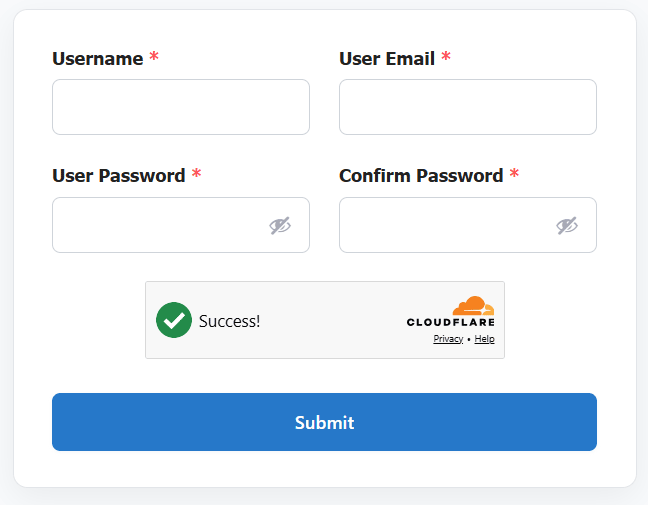
1. Register for an account
Click ‘Register’ and choose a username. Enter your email address and choice of password.
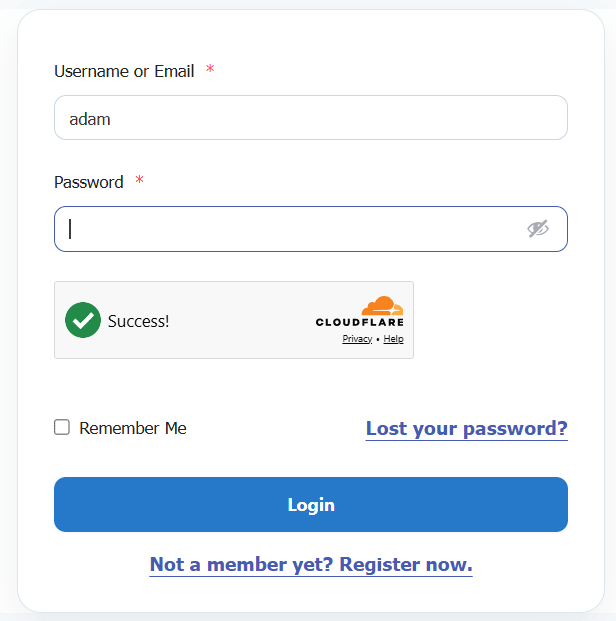
2. Log in
Once you have registered, you can log into your new account.
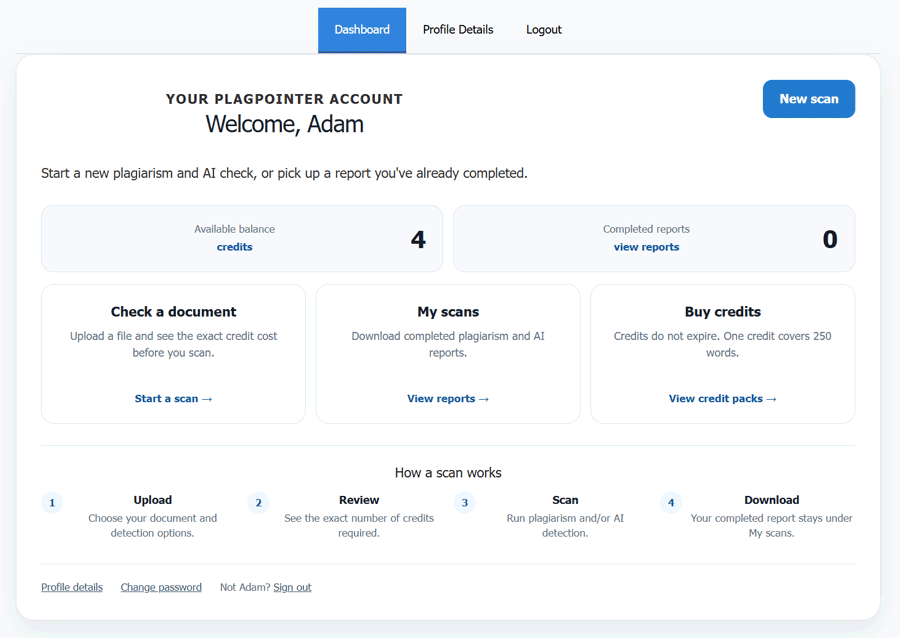
3. Account area
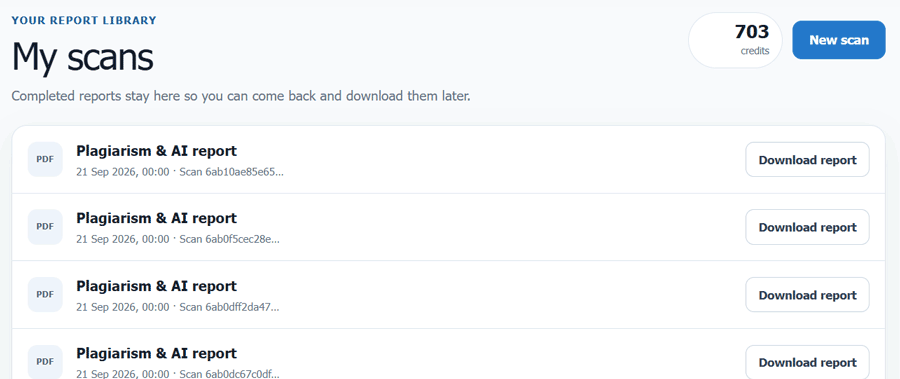
From your account area, you can start a new scan, view and download completed reports, check your credit balance, buy additional credits and manage your account details.
4. Adding credits
PlagPointer uses a pay-as-you-go credit system. One credit covers up to 250 words and can include both plagiarism and AI detection. Credits purchased in advance are stored in your account and do not expire.
To buy credits in advance, click Credits in the menu and choose a bundle. Larger bundles have a lower cost per credit.
You do not need to buy credits before uploading a document. We calculate the exact number of credits required after you choose your scan settings and before the scan begins.
Note that some optional services, such as our cross-language checking, may increase the number of credits used. You will always get a quote before the scan is performed.
5. Scanning
To make a scan, click ‘scan’ at the top of the page. You will be presented with some options.
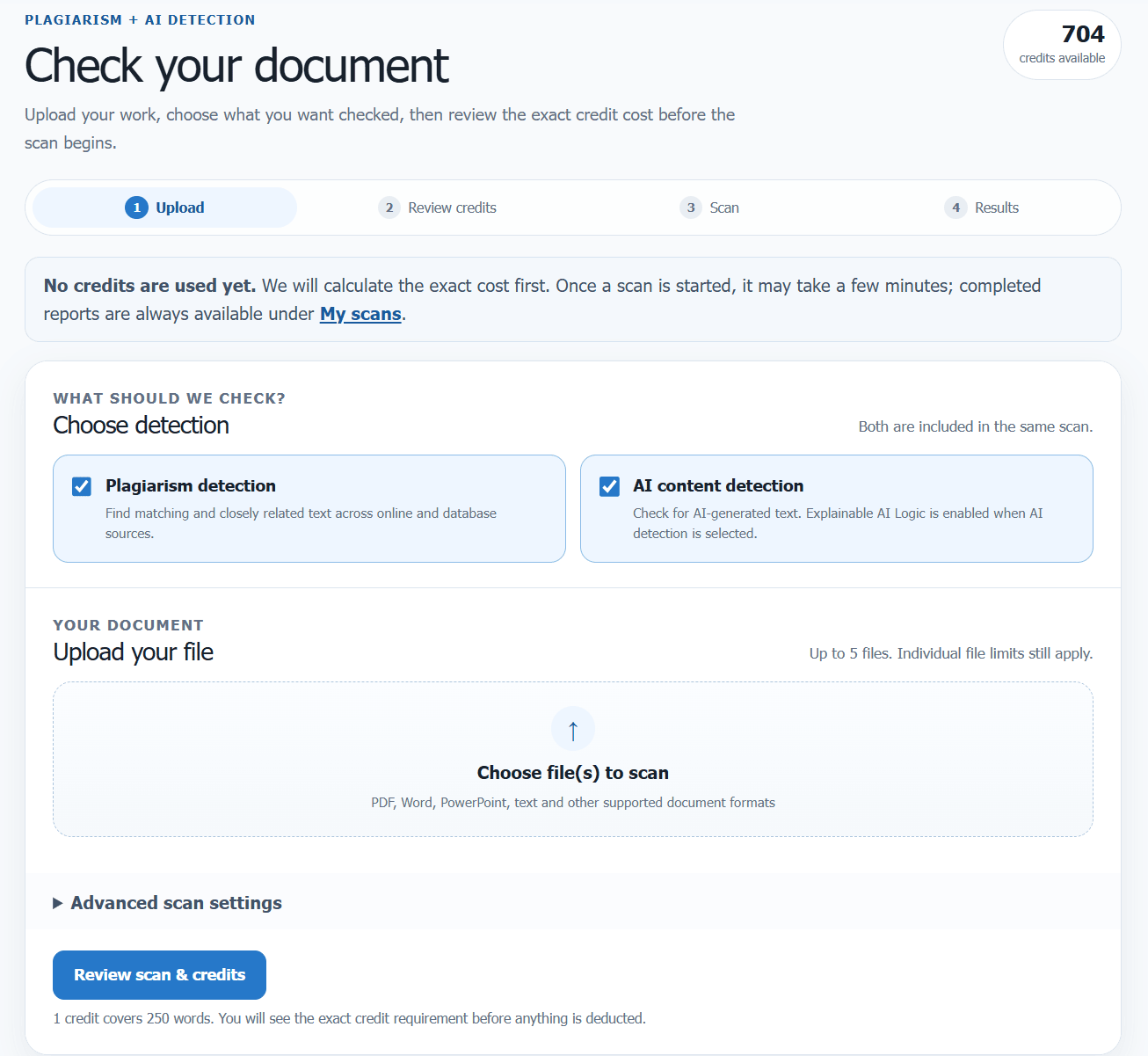
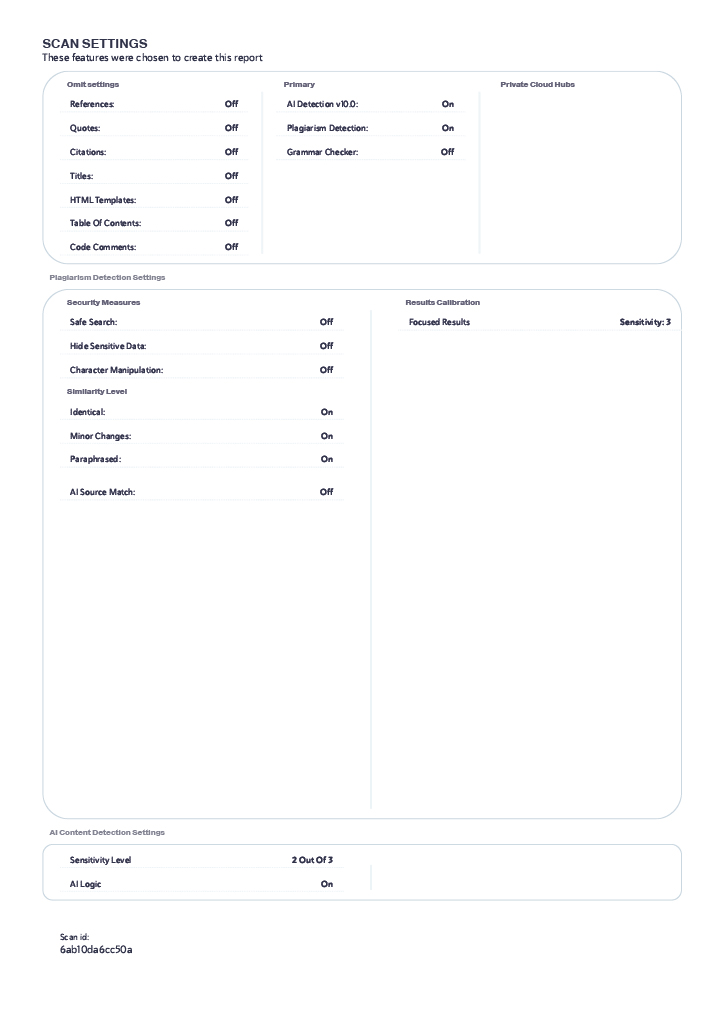
Detection modes: You can check for plagiarism, AI-generated content or both. Plagiarism and AI detection can be run together as part of the same scan, and the results are presented separately in your report.
Exclude: You can exclude references, quotations, citations and the table of contents from the plagiarism analysis. This can make the similarity percentage more meaningful by preventing correctly cited or routinely repeated material from inflating the result.
Plagiarism sensitivity: You can choose a lower, standard or higher sensitivity for plagiarism matching. A higher setting looks more extensively for potential matches but may take longer, while a lower setting prioritises the strongest matches and may complete more quickly.
This setting applies to the plagiarism scan. It is separate from the sensitivity models used by the AI detection technology.
Cross-language checking: This optional feature can help identify plagiarism where content has been copied from a source in another language and translated. Choose the appropriate source language if you want the scan to look for translated matches. Cross-language checking requires additional processing and may use additional credits..
Scan against the shared document database? This optional database contains previously submitted documents that can be used as an additional source for plagiarism matching. If you enable this option, your document will also be added to the shared comparison database so that future scans can be compared against it.
This option is entirely voluntary and is switched off by default. If you do not select it, your document will not be added to the shared comparison database.
If you don’t want your file to be added to the database, select ‘No’. Or, you can select ‘Yes’ initially and then email and ask us to remove it later. There is no charge.
File upload: Select up to 5 files to scan at once. The following file types are supported: html, htm, txt, rtf, xml, md, pdf, docx, doc, pptx, ppt, odt, epub, odp, ppsx, pages, xlsx, xls
6. Payment
6. Review credits and start your scan
After you upload your document and choose your scan settings, PlagPointer calculates the exact number of credits required before anything is charged.
If you already have enough credits in your account, you can use your existing balance to start the scan. If you need more, you can purchase an appropriate credit bundle securely by card.
Nothing is deducted until you confirm that you want to start the scan.
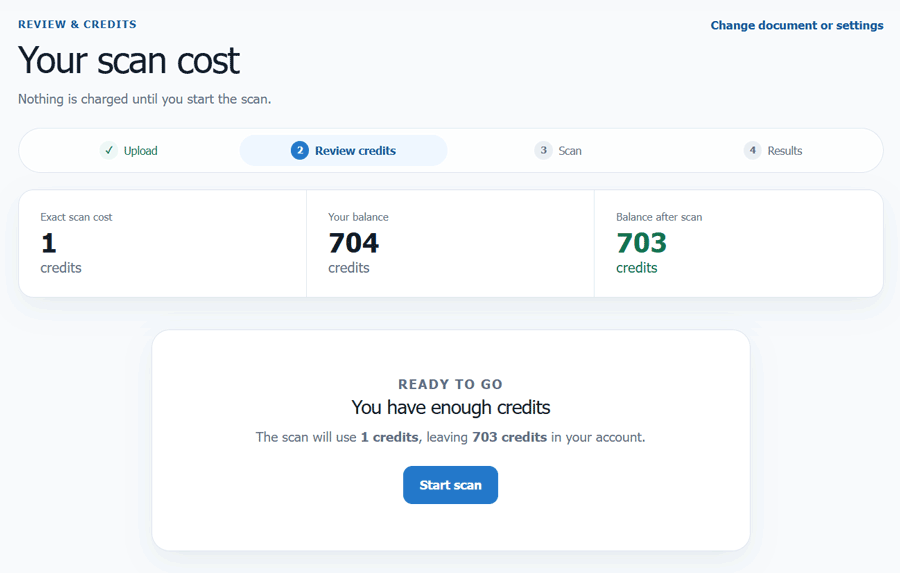
If you click ‘pay from card’, a popup box will open, allowing you to make a payment to continue. As noted previously, it is better to add credits before you scan, to get the best value for money.
7. Scanning
Once you start the scan, your document will be processed in the background. Most reports are completed within a few minutes, although processing time can vary depending on the document and the options selected.
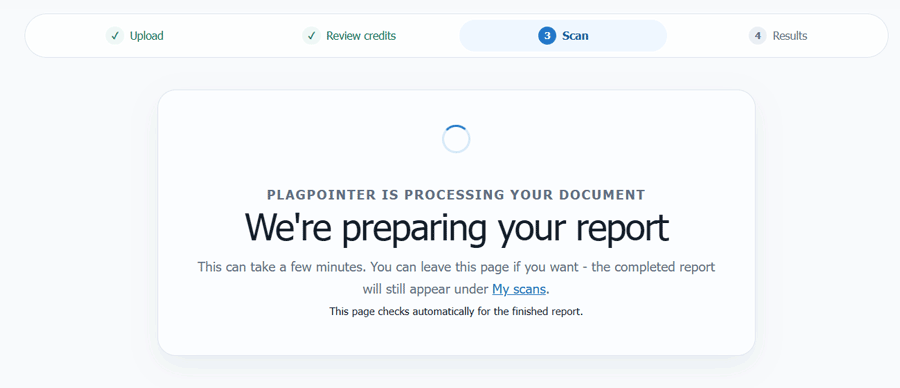
You do not need to keep the processing page open. You can leave the page or close your browser and return later. Your completed report will appear automatically under My scans in your account.
If you do stay on the same page, once the scan is finished, you will see a notice to download your report(s):
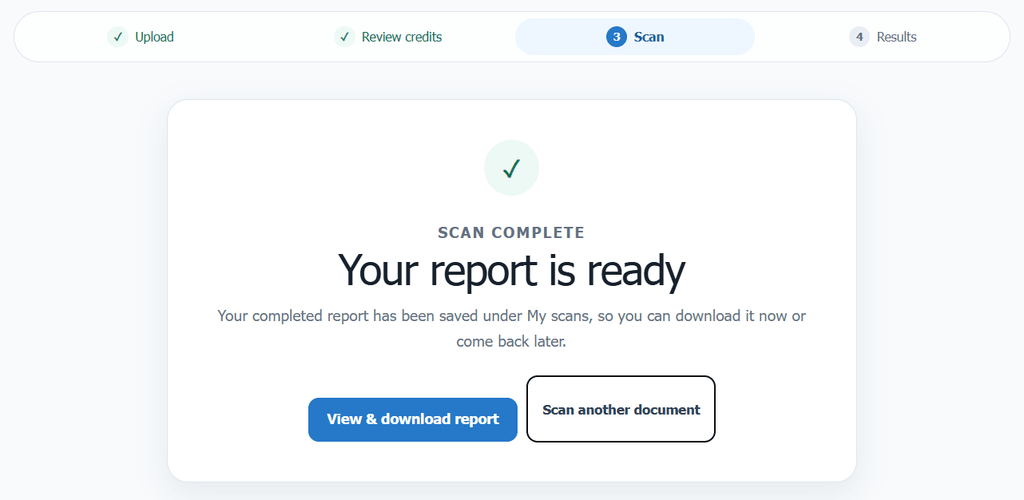
Once processing is complete, your report will be available under My scans. Click the download option next to the relevant scan to download your PDF report.
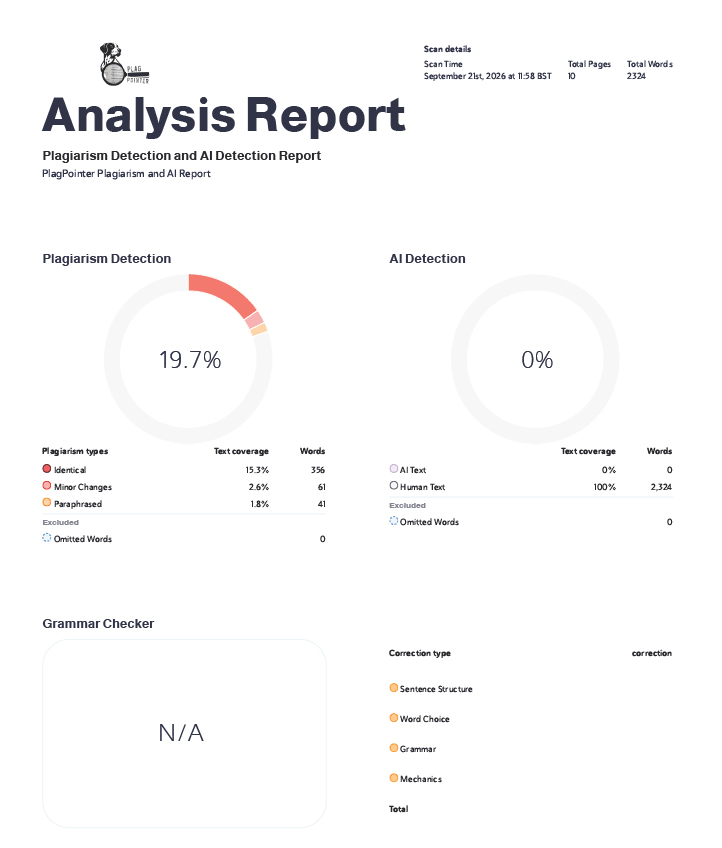
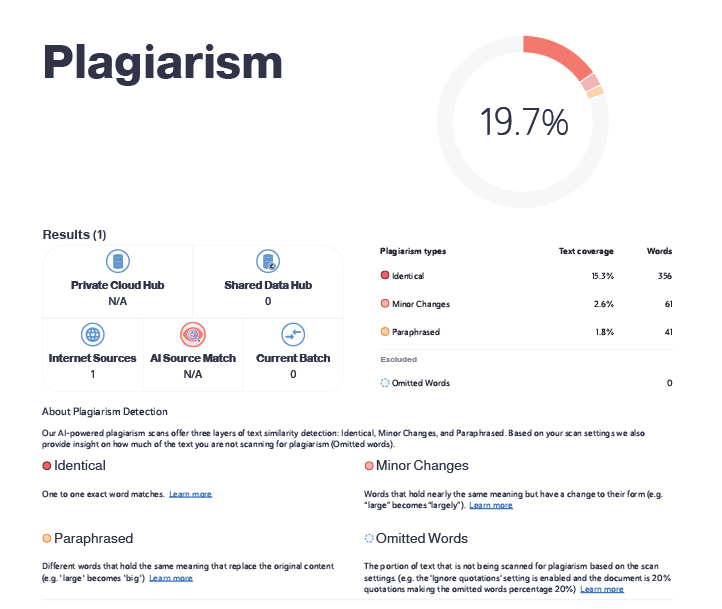
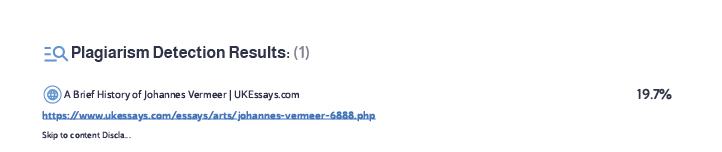
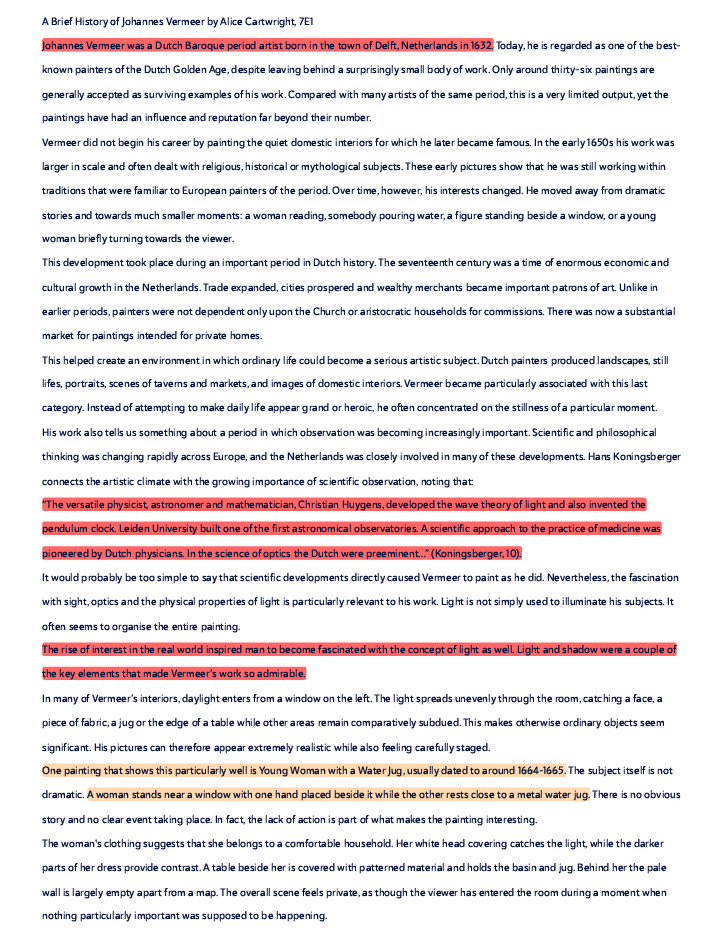
8. Your report
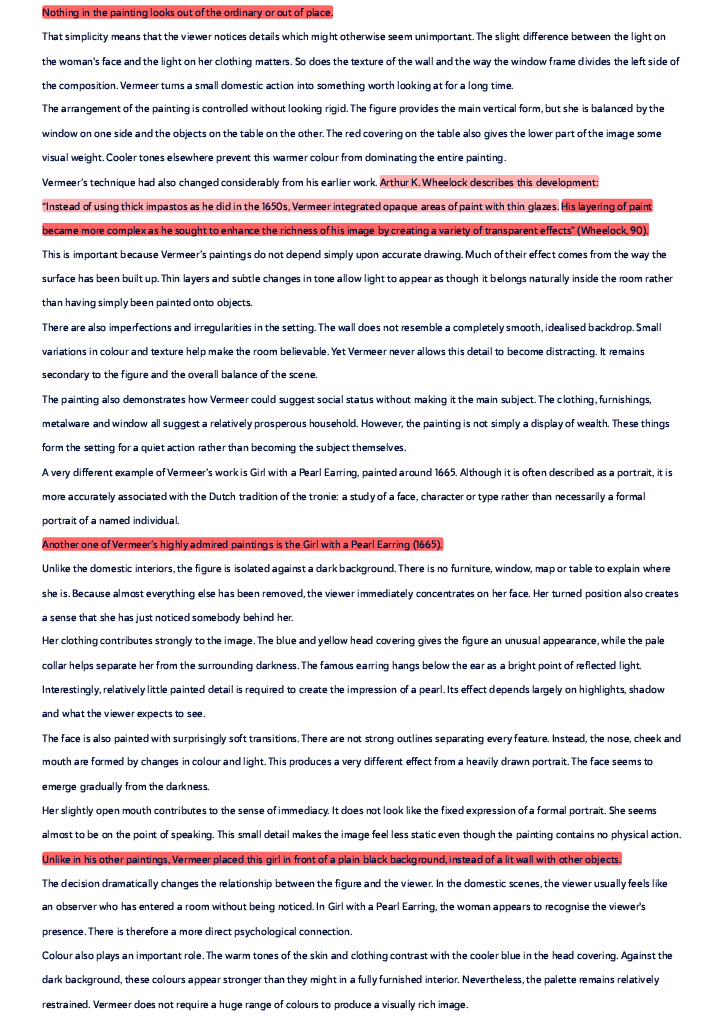
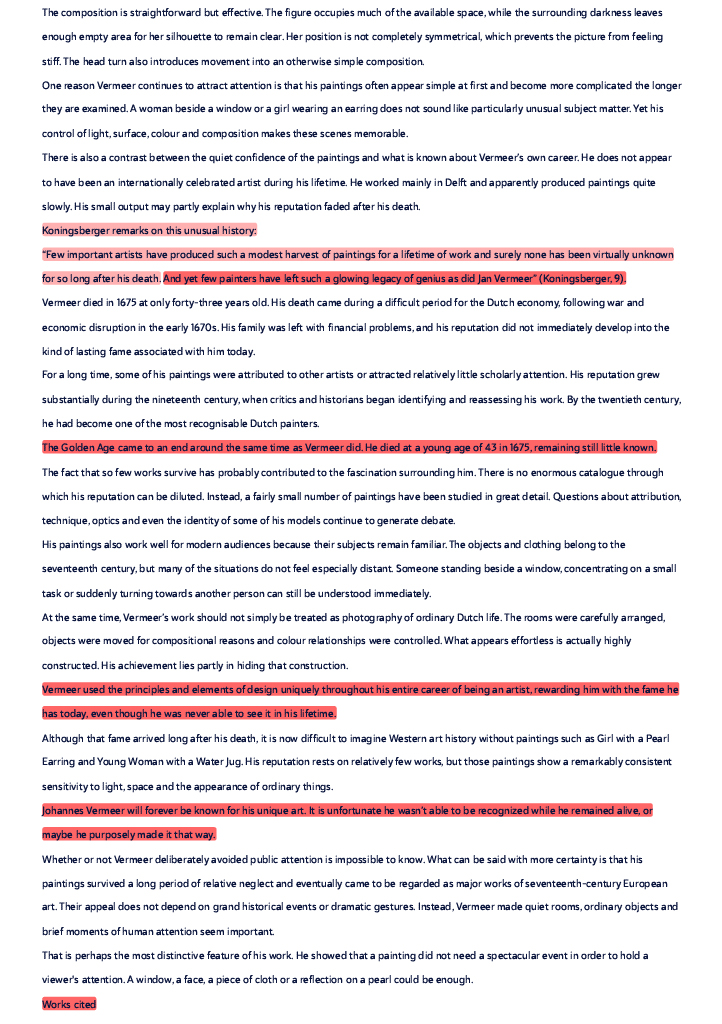
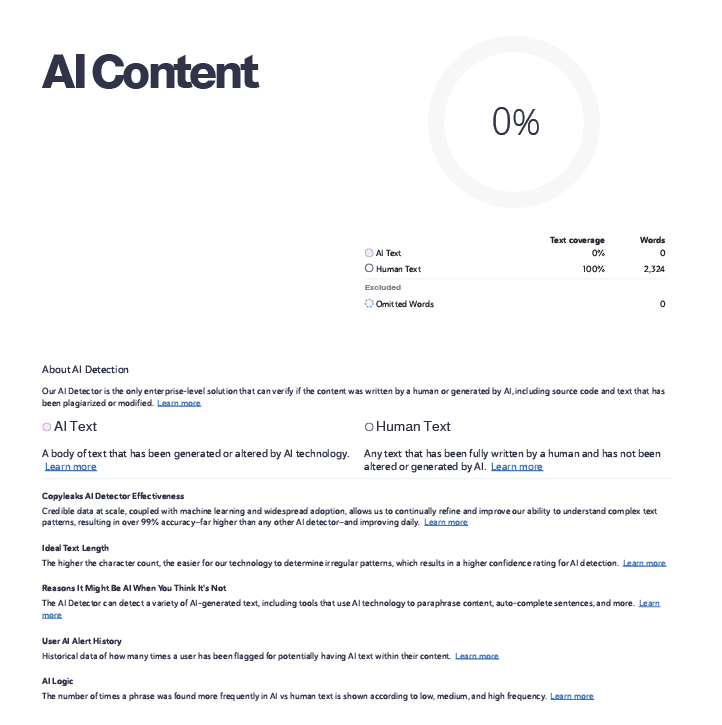
Results for your plagiarism check and your AI detector check are split in the report. Here is a sample report: